
I recently had the opportunity to test the On1 AI Resize app, and I have to say I am really impressed. Here is my review and how I used that software to increase the file size of one of my photographs so I could make a large print.
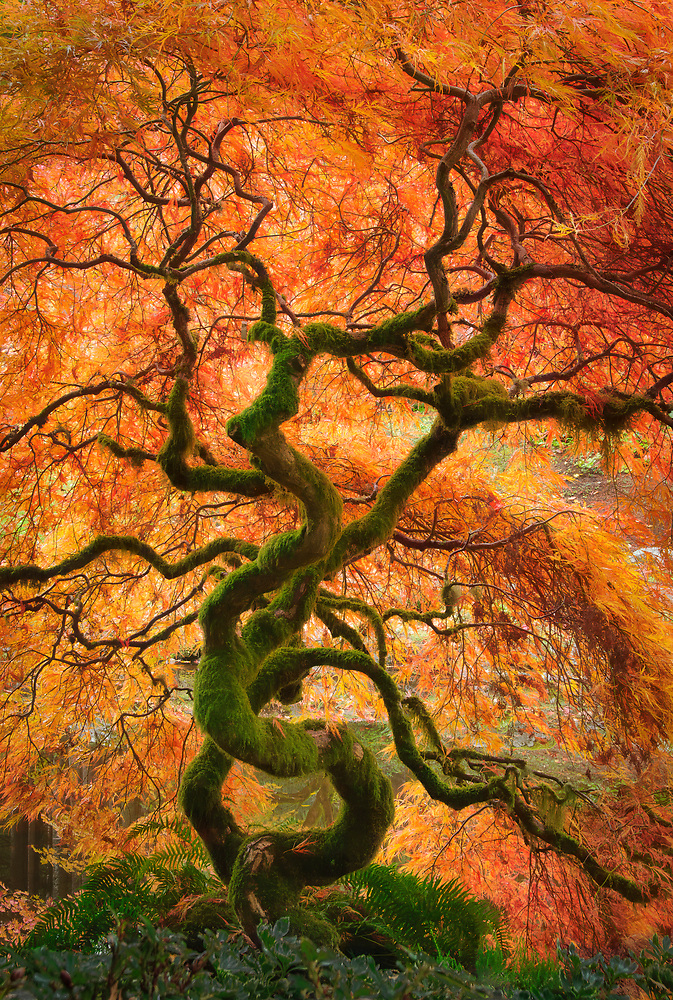
A few days ago, an email arrived asking about at 40″ wide acrylic print of this laceleaf maple tree photograph. I certainly wanted to make that sale, but I was afraid the file size for this image was too small to make a quality print at that size. I made this photo years ago with a Nikon 300s and 18-200mm Nikkor lens – a 12 megapixel camera and a mid-range do-it-all lens. I’ve made prints up to 24″ wide from this file that came out quite nicely, but I wasn’t sure it would hold up at 40″ wide. Having recently installed the On1 AI Resize app, I decided to give it a try.
Using On1 AI Resize
Downloading and installing On1 Resize is a breeze. It works as a stand-alone app, or a plug-in with Photoshop and Lightroom. For this test, I chose to go the Photoshop plug-in route. I made a Virtual Copy of my master file in Lightroom Classic, then clicked on Photo>Edit In>Adobe Photoshop.
With the file open in Photoshop, the workflow goes File>Automate>On1 AI Resize. When the file opened in On1 Resize, I just entered the width I wanted for the end result, selected Highest Quality, and clicked the blue button at the bottom of the window. For this file, a 40″ print at 300dpi was a 6x magnification. Frankly, I was skeptical it was going to result in a usable quality print, but looking at the resized file on my monitor, the sharpness and lack of pixelization was amazing. Here is a section of the file at 100%:
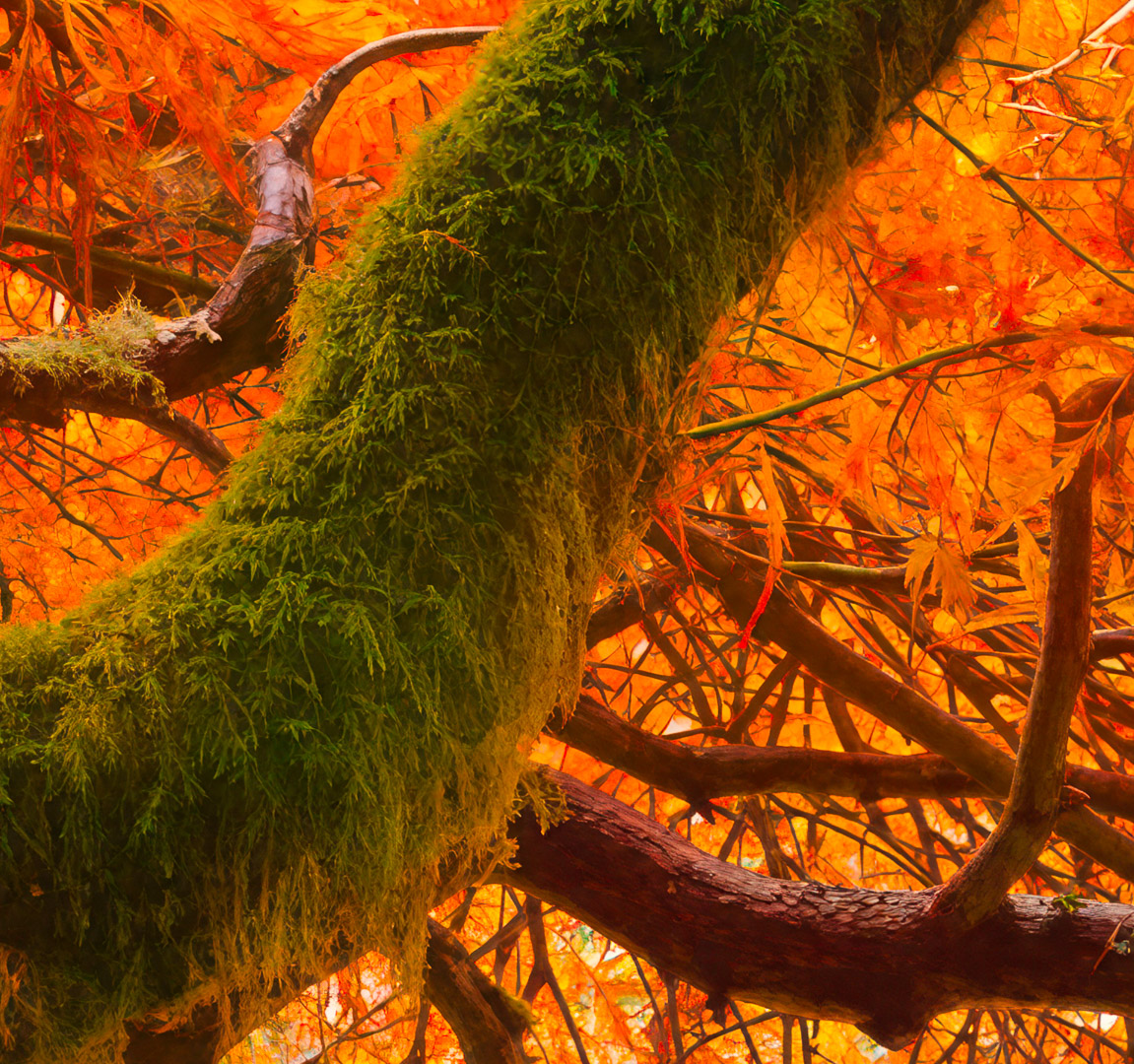
But would it really work as a very large print? I’m lucky because I have an excellent local custom print service. I uploaded the file to their website and ordered a 9″ wide by 24″ tall test print strip from a representative section of the image that would show the quality of the photo if it was enlarged to 40″ wide.
A couple of days later, I went to pick up the test print. Katey laid it out on the table, and I was very pleased, to say the least. The test strip showed that the file On1 Resize generated is indeed capable of making a 40″ wide print that I can be proud of.
Conclusion
Bottom line: I highly recommend On1 AI Resize if you need to print an image at a size that wouldn’t be advisable given the pixel dimensions of your original RAW image. Want to try it yourself? You can purchase the standalone On1 Resize app here. If you want to test it first, go for the Free Trial. You can also get Resize included in the complete On1 Photo Raw 2027 app. By the way, if you want to stop paying Adobe’s monthly subscription price, On1 Photo Raw is a viable alternative to Lightroom.
Disclosure: I have an afilliate relationship with On1. If you purchase one of their products, I may get a small commission, but it won’t cost you a single cent over what you would pay otherwise. That little bit is certainly not going to make me rich, but it helps cover the cost of maintaining this blog. And please be assured that I only recommend products that I personally use and have truly found beneficial.






 by
by 